Properly ending an RDP (Remote Desktop Protocol) session on a remote server is important for several reasons:
How to properly end an RDP session:
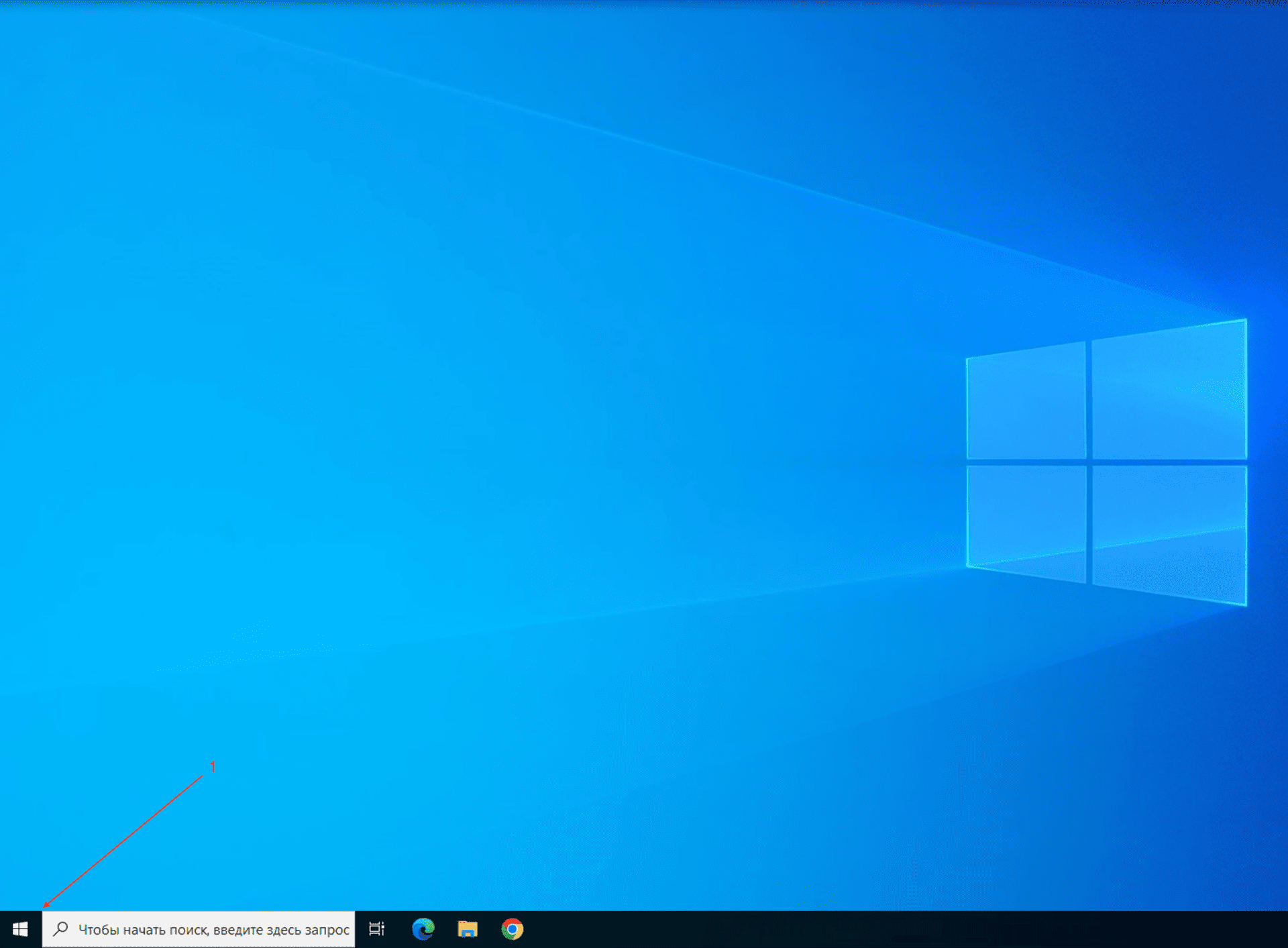 and select the person icon and click “Sign Out”.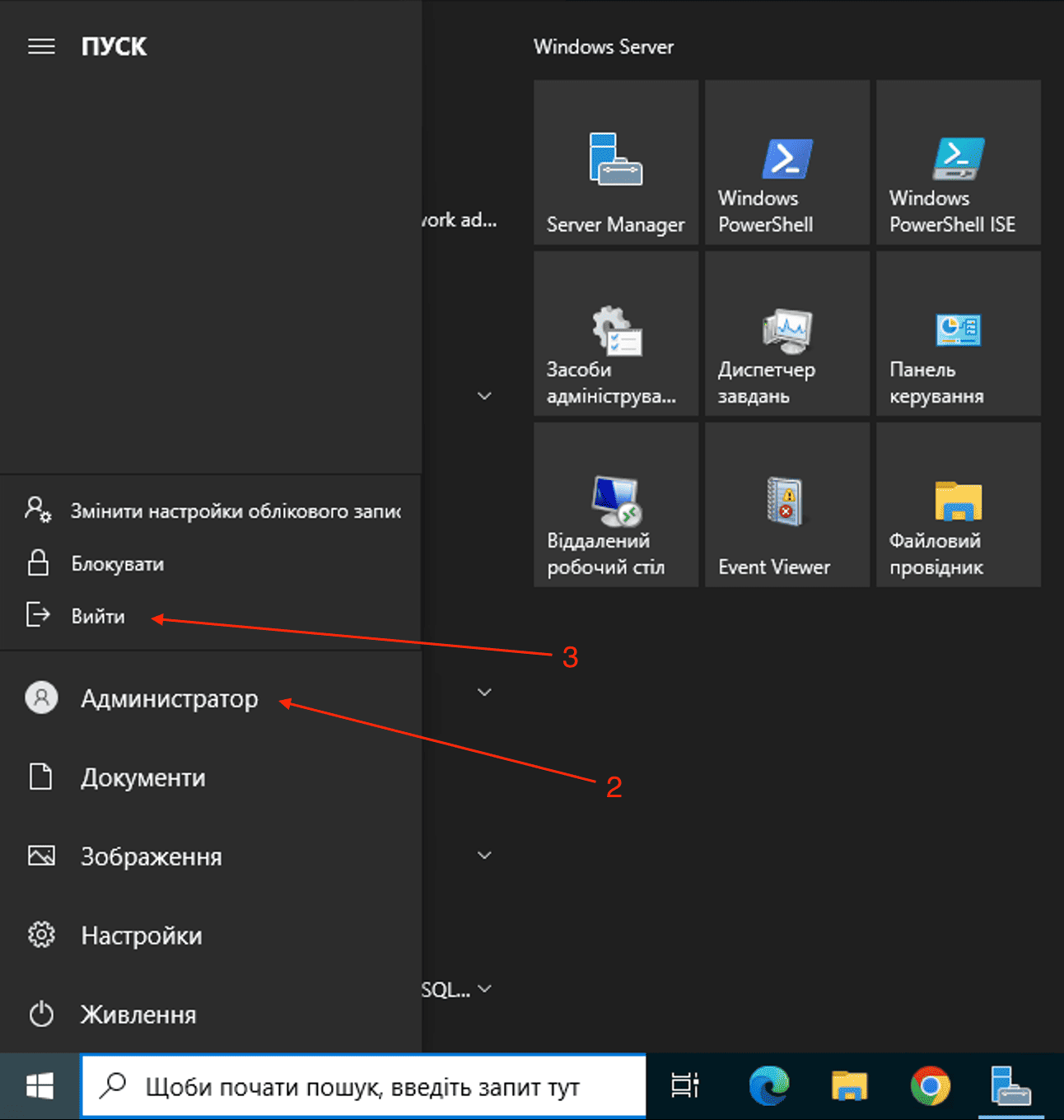
The key is to log out of the remote session correctly and completely to ensure the security and stability of the server.
 Статті
 Configuring time synchronization on a domain controller with an NTP server
Changing the scale for a specific user on RDP Server Windows Server
Configuring time synchronization on a domain controller with an NTP server
Changing the scale for a specific user on RDP Server Windows Server