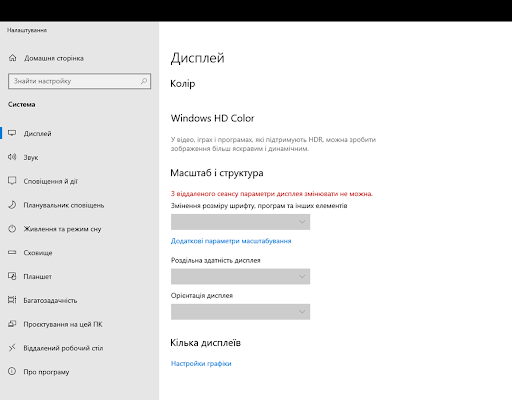
In Windows Server 2016/2019/2022, it is not possible to change the scale through the settings window for a specific user. But it is possible to change it through the registry. To do this, you need to:
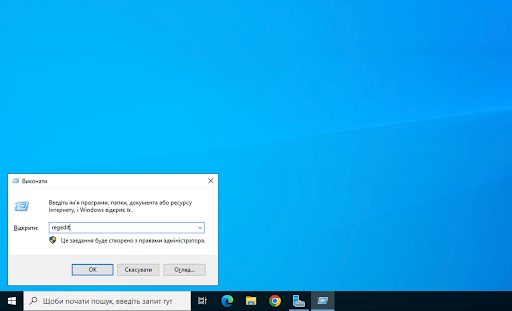
Launch the registry editor using the key combination “Win+R” and enter “regedit” and click OK.
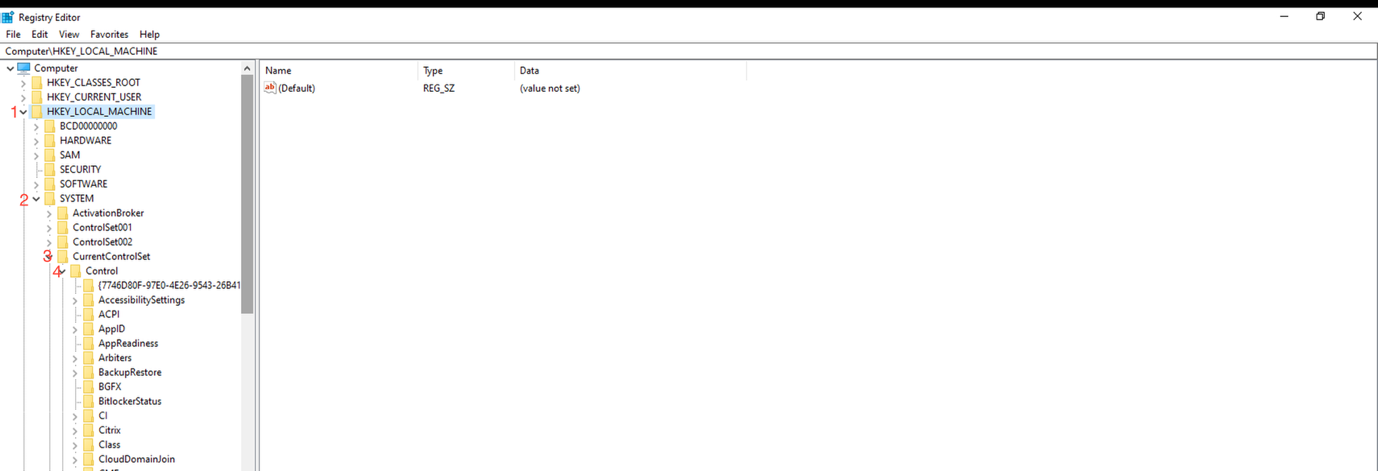
Go to the path: HKEY_LOCAL_MACHINE\SYSTEM\CurrentControlSet\Control\Terminal Server\WinStations
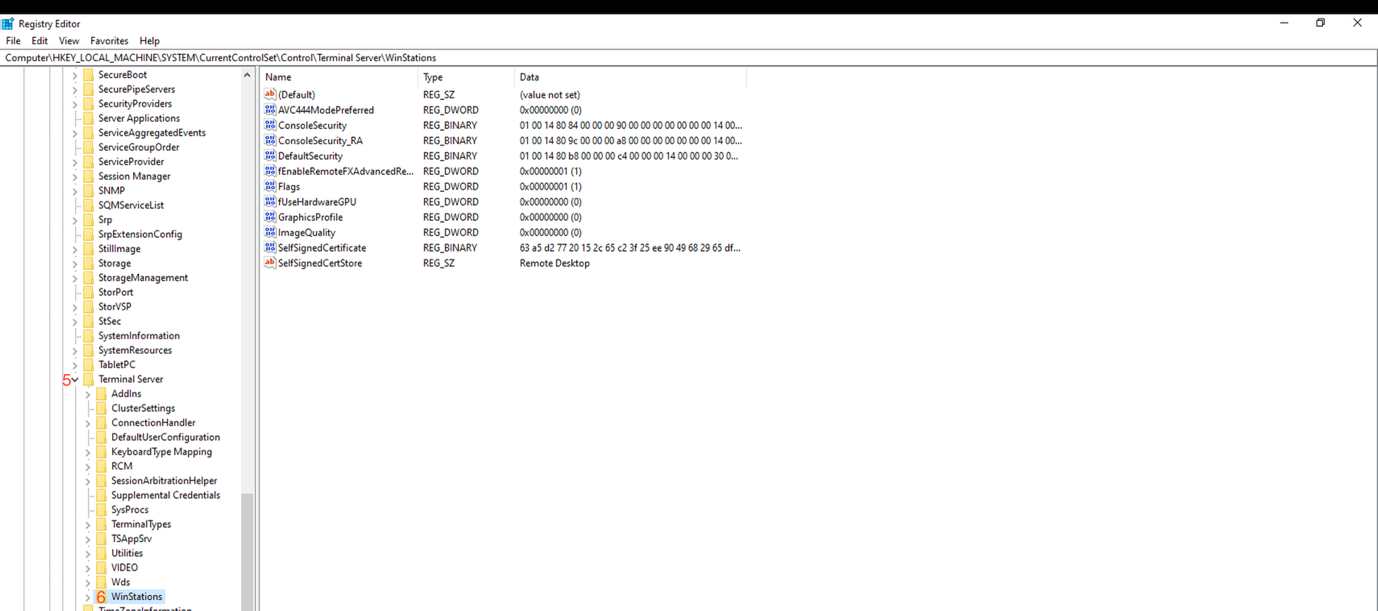
Here we need to create a parameter with the name “IgnoreClientDesktopScaleFactor” and assign a value of -1. In the empty space, right-click and select “New”
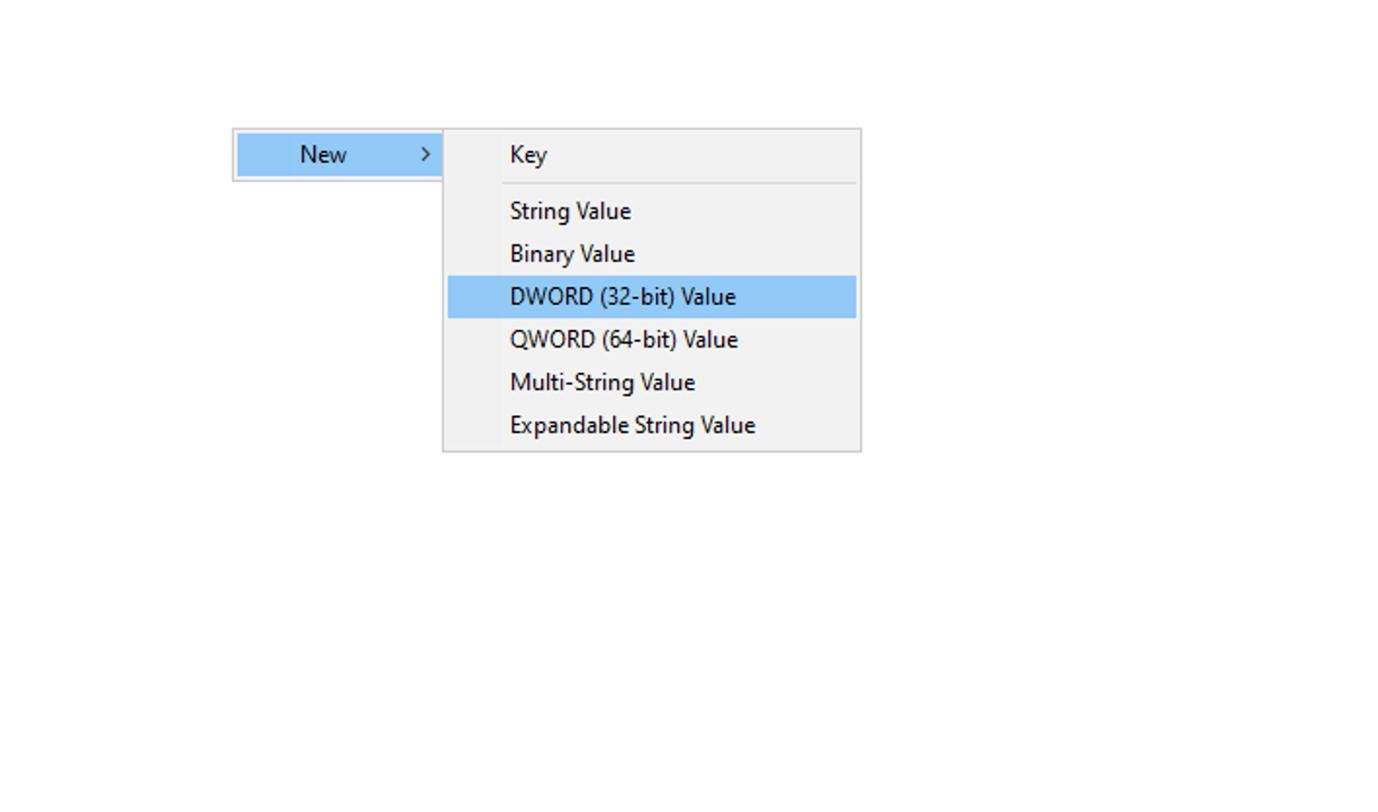
Enter the parameter name IgnoreClientDesktopScaleFactor and press Enter.
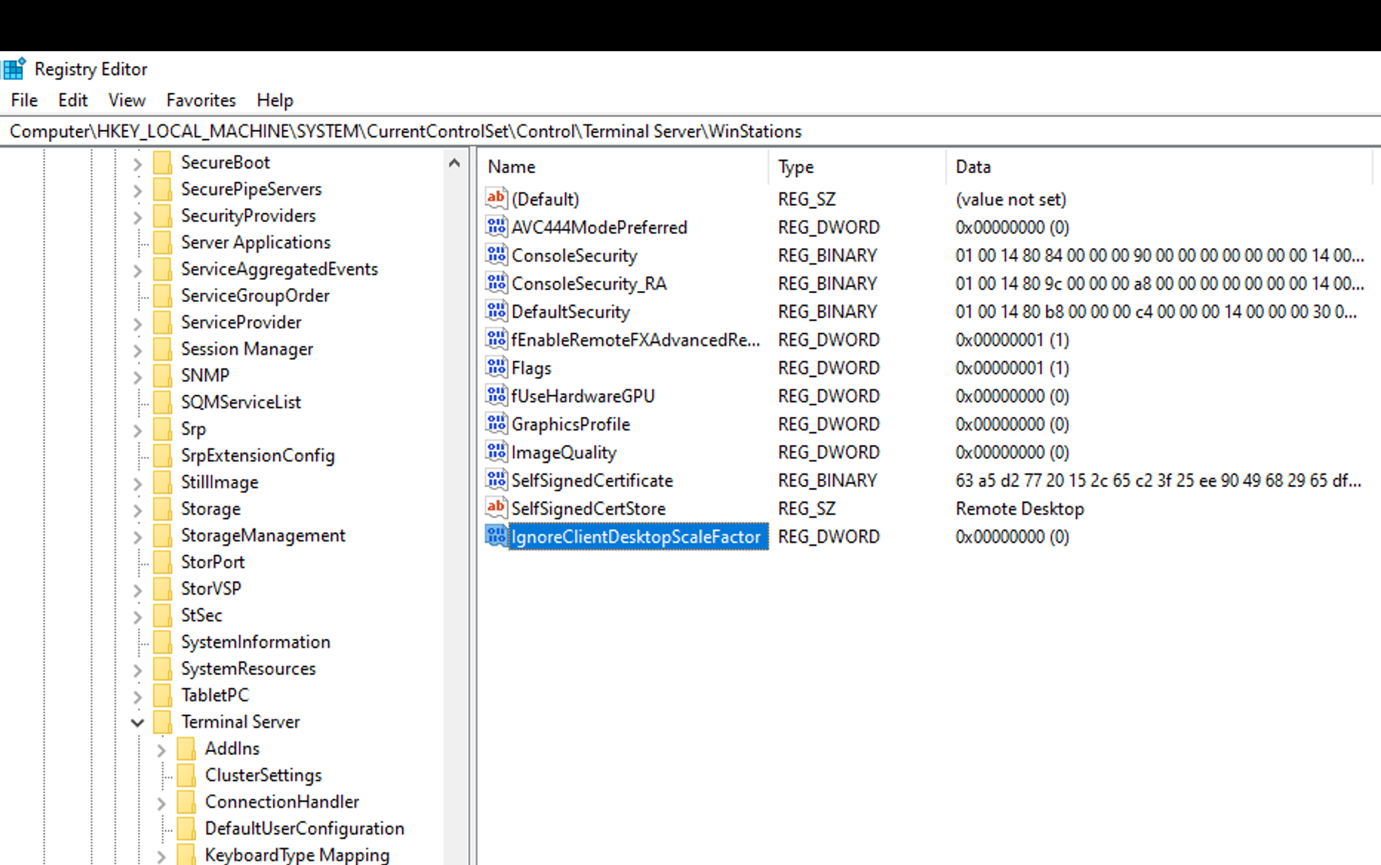
Next, go to the parameter and set the value. And click OK.
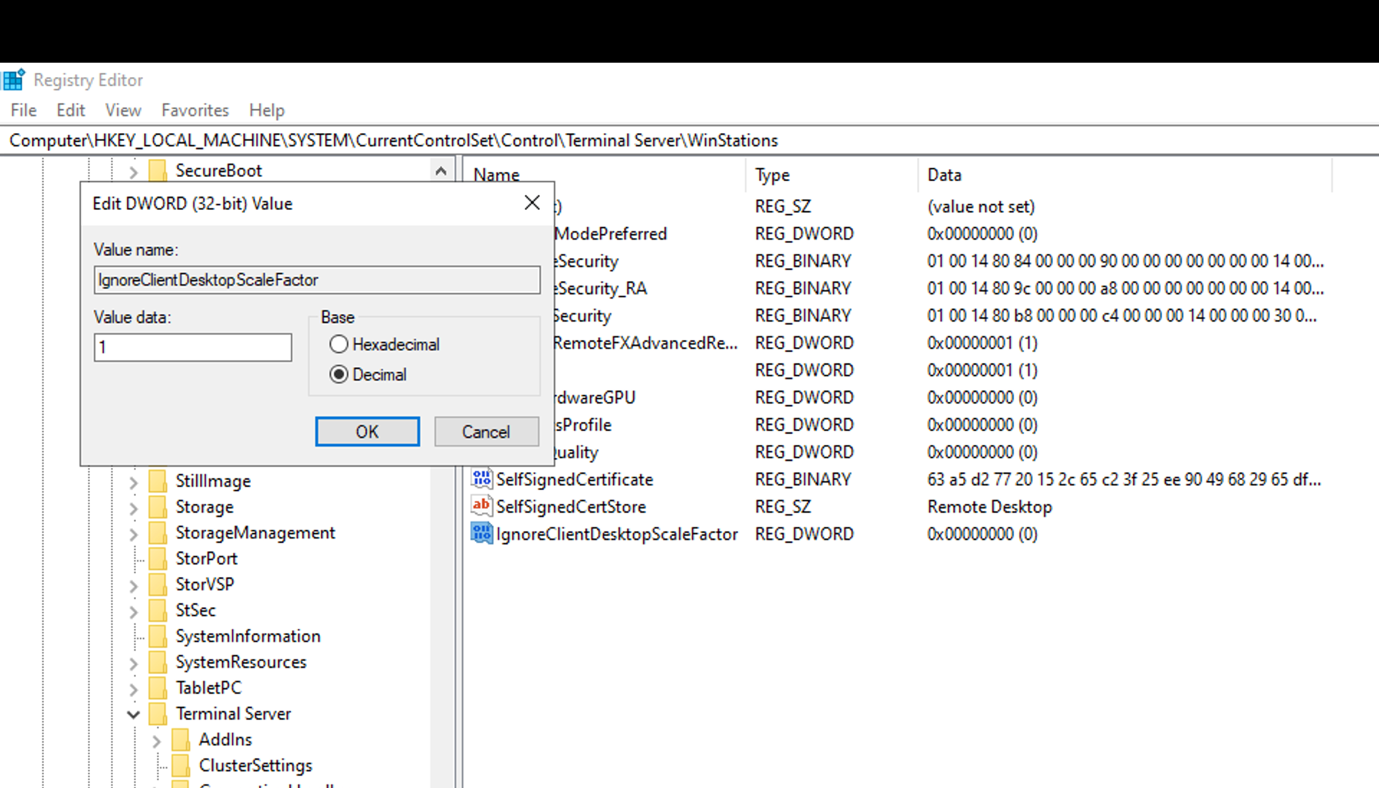
IgnoreClientDesktopScaleFactor This parameter disables the inheritance of parameters from the client computer and applies to the entire system. Therefore, to change it, you must have Administrator rights.
Then you need to restart the system. Next, we can proceed to the scaling settings according to the needs of the individual user. To do this, you need to go to the registry editor again and go to the path:
HKEY_CURRENT_USER \Control Panel\Desktop
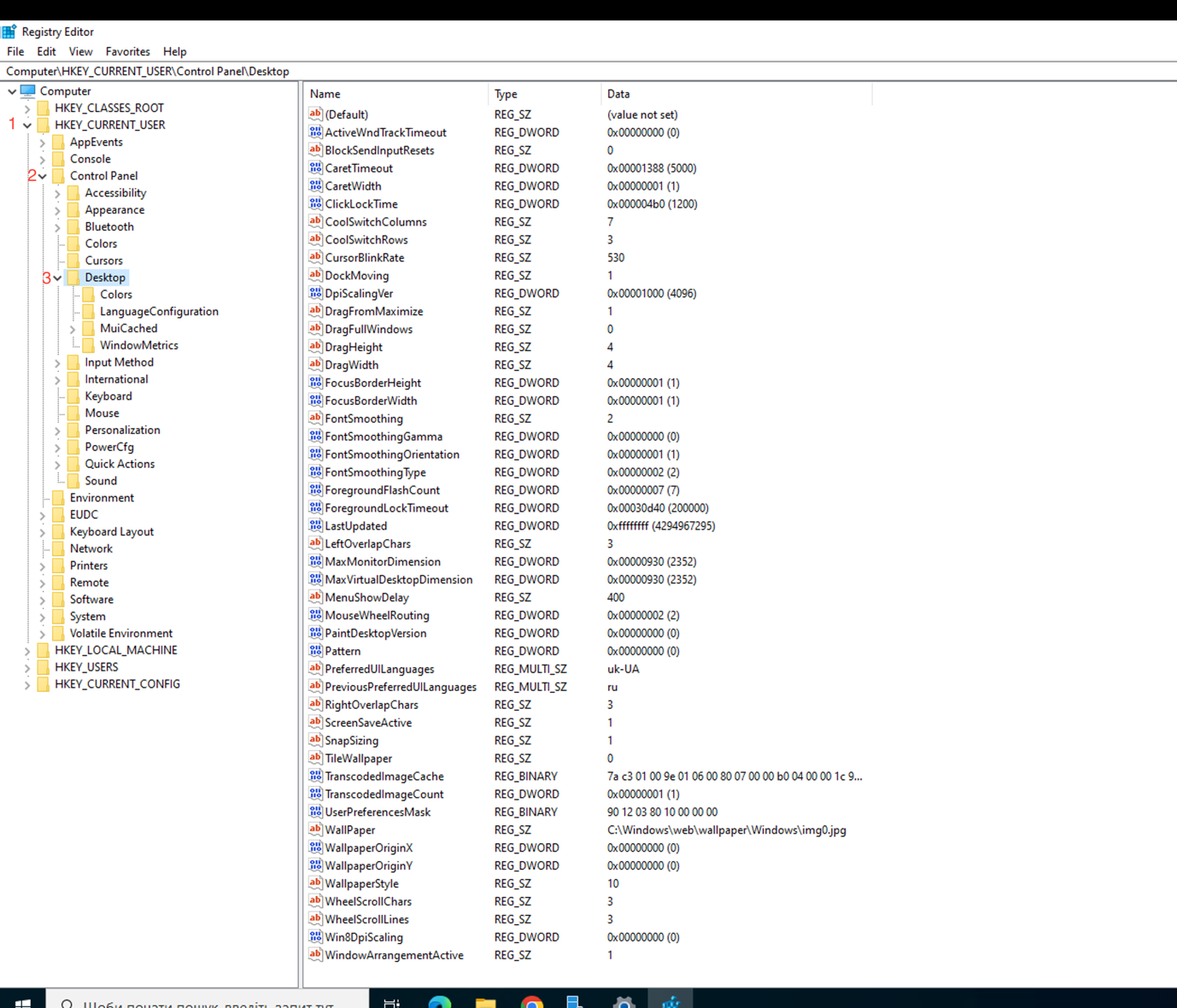
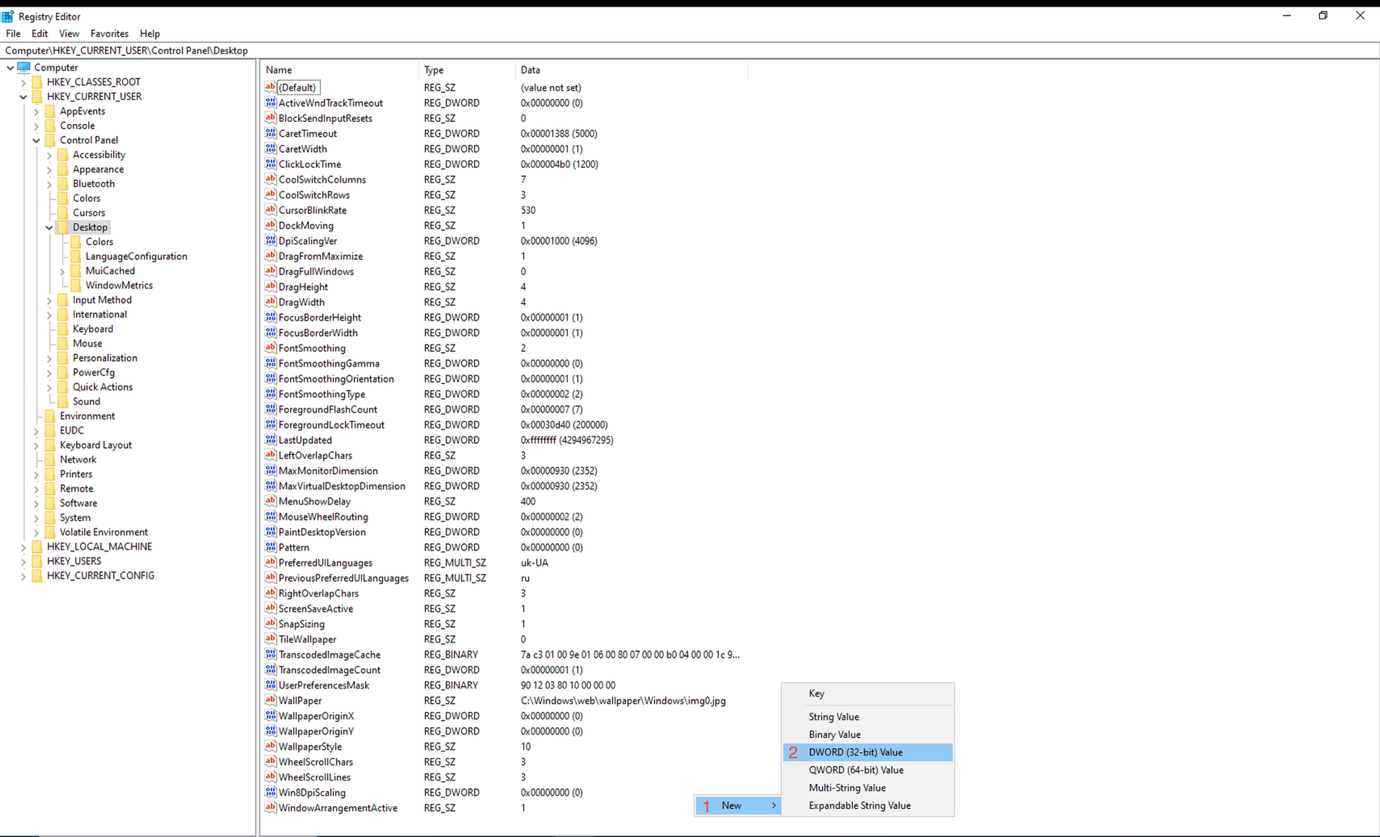
Create a REG_DWORD registry parameter with the name LogPixels and the values for setting the scale:
96 — for 100% scale
120 — for 125% scale
144 — for 150% scale
192 — for 200% scale (good for 4k monitors)
288 — for a scale of 300%
Right-click on an empty space and select new then DWORD and enter the name LogPixelsand press Enter.
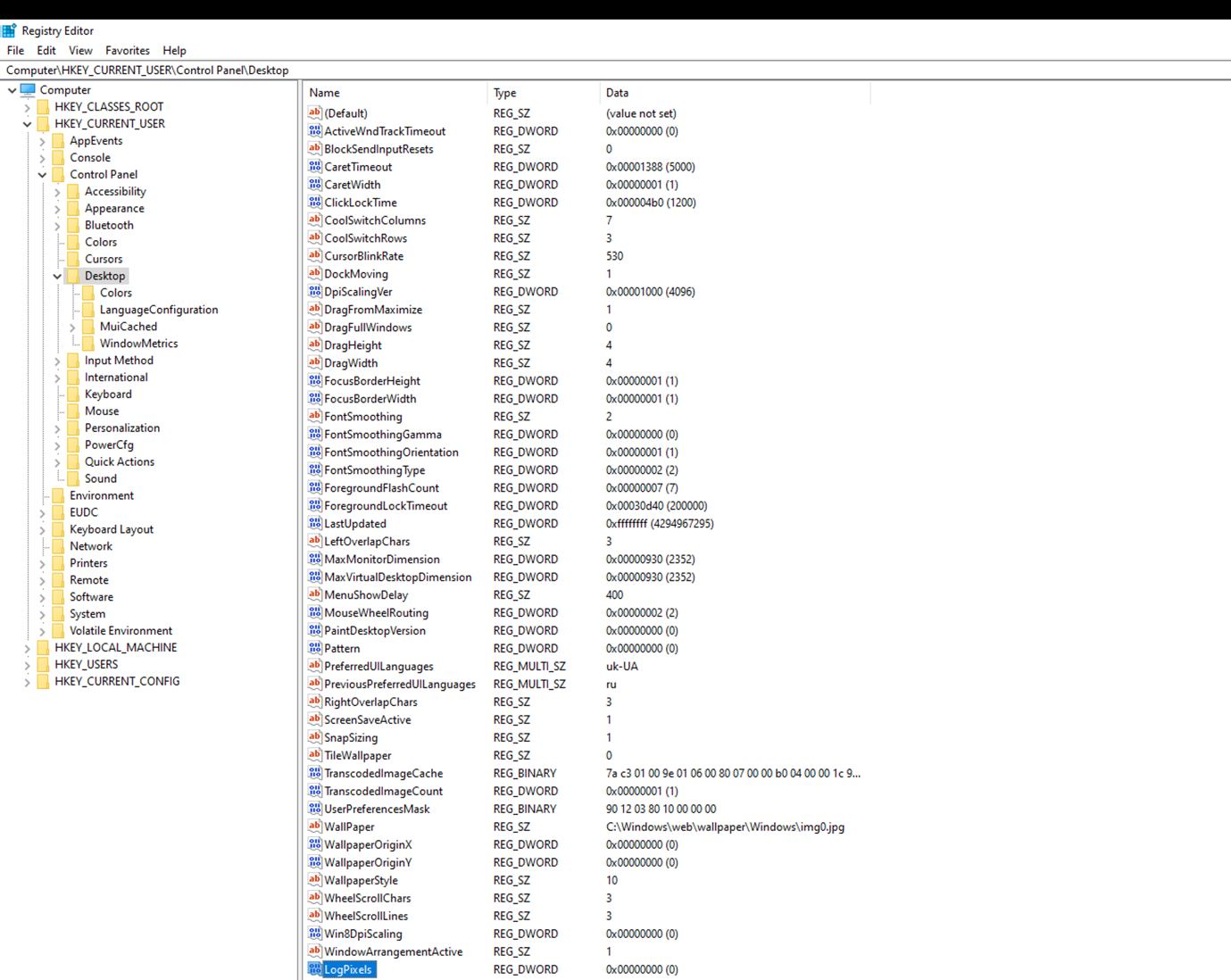
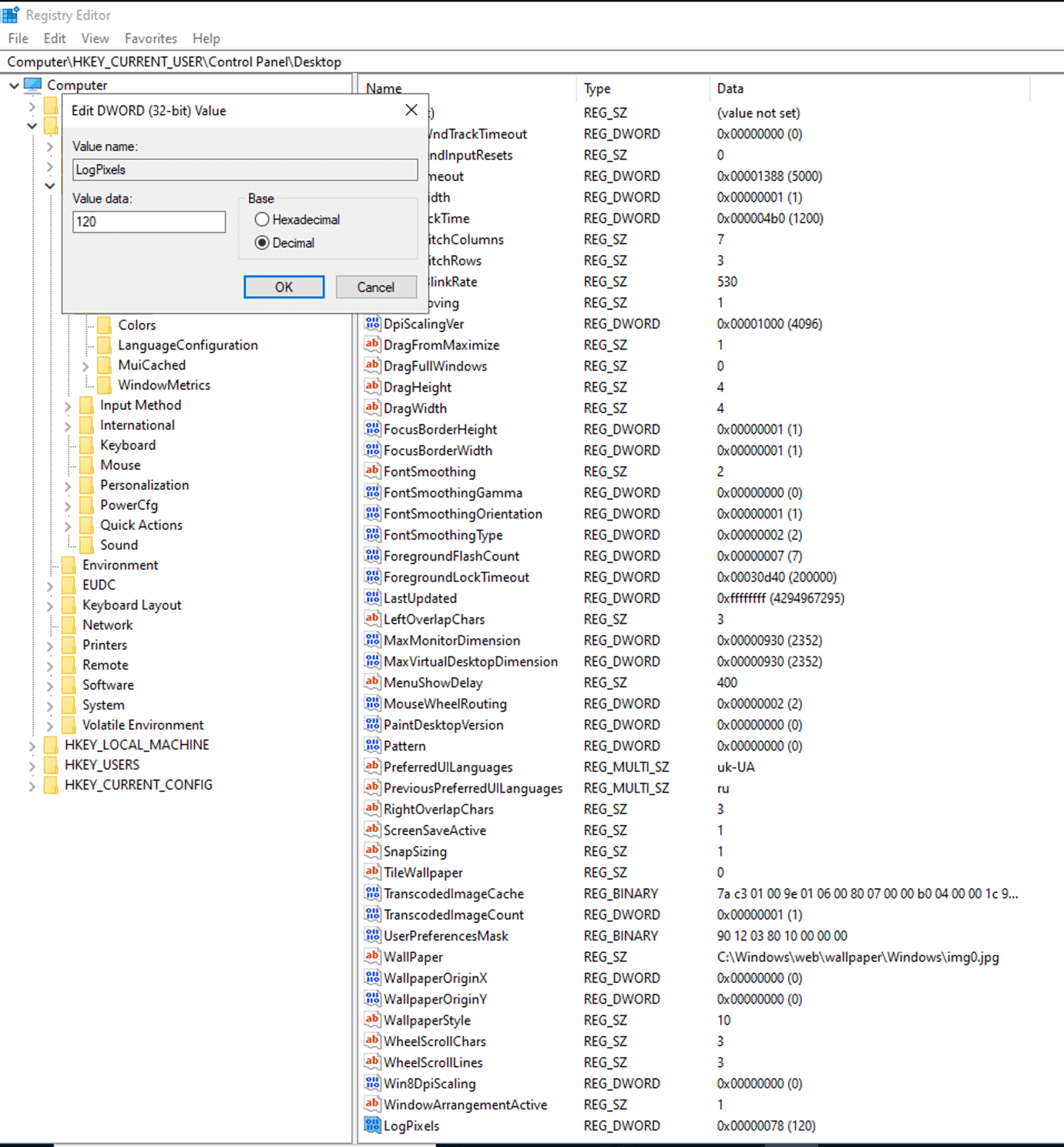
Edit the parameter value by double-clicking on it and setting the value we need. For example, I have a scale of 125%
To apply the changes, you must end the session and reconnect. If you need to reduce or increase the scale in the future, you must adjust the LogPixels parameter.
 Статті
 Properly ending an RDP session
Configuring time synchronization on a domain controller with an NTP server
Properly ending an RDP session
Configuring time synchronization on a domain controller with an NTP server