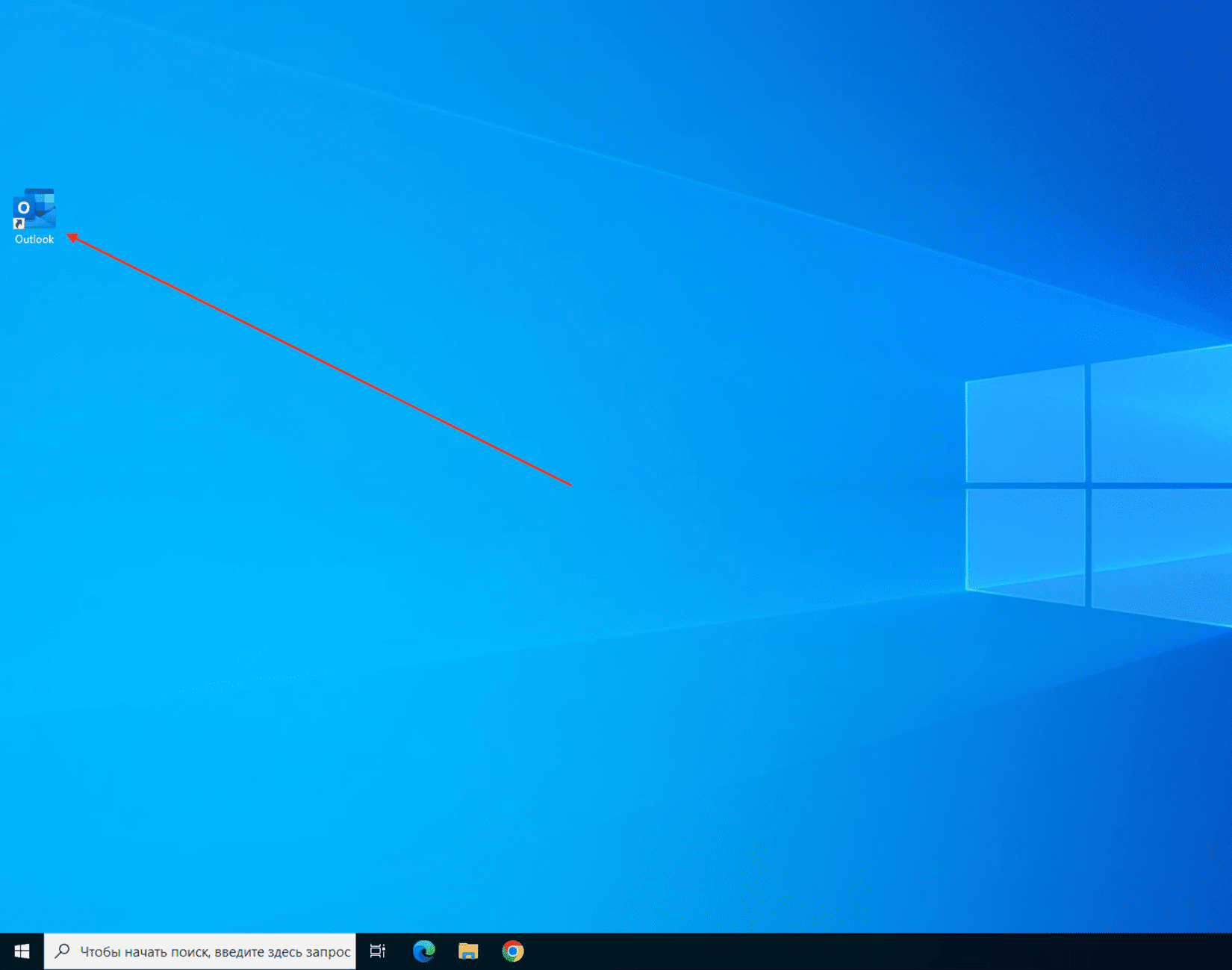
Open Microsoft Outlook:
Find and launch Outlook on your computer.
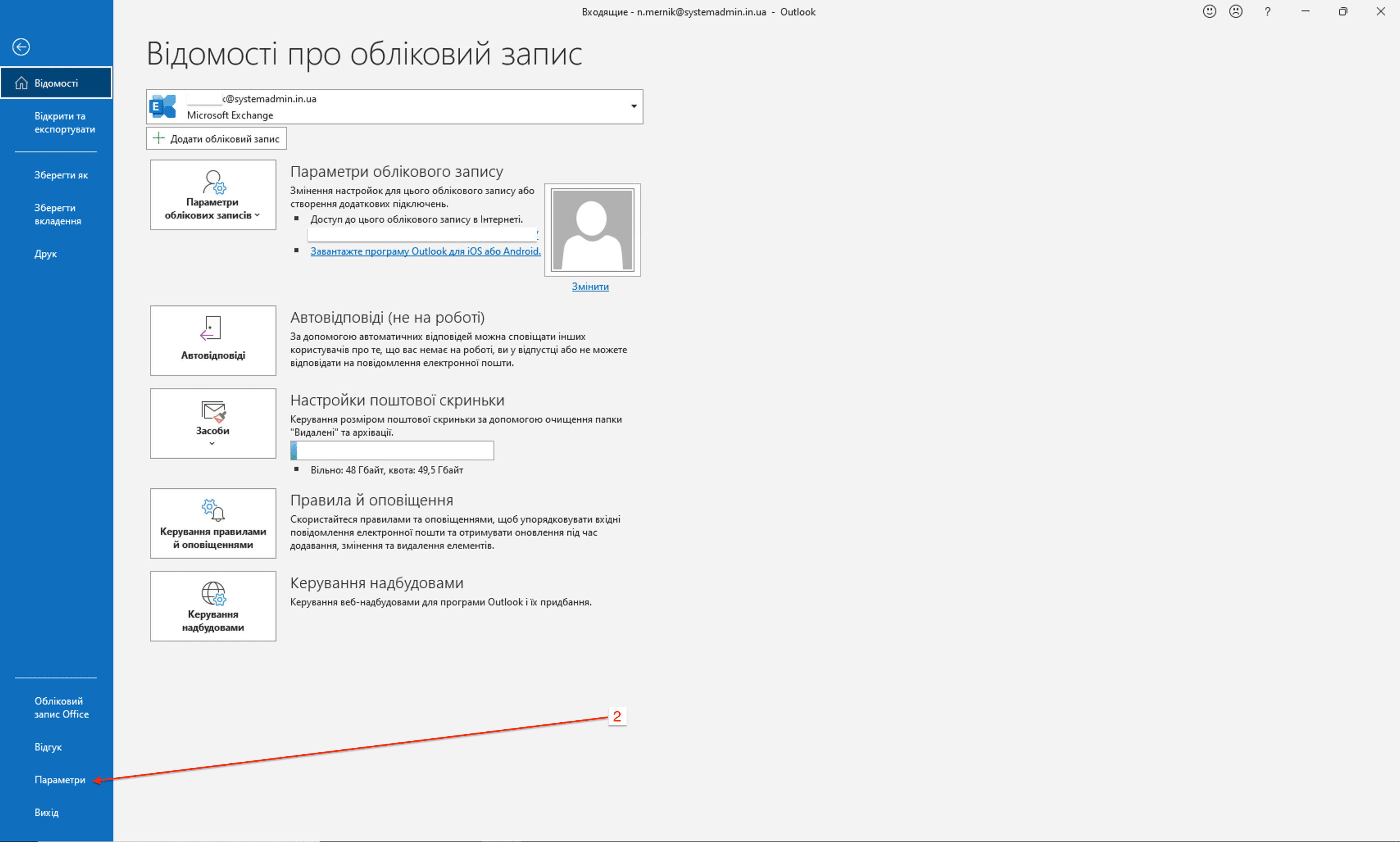
Go to signature settings:
In the top menu, click “File”,

then select “Settings”.
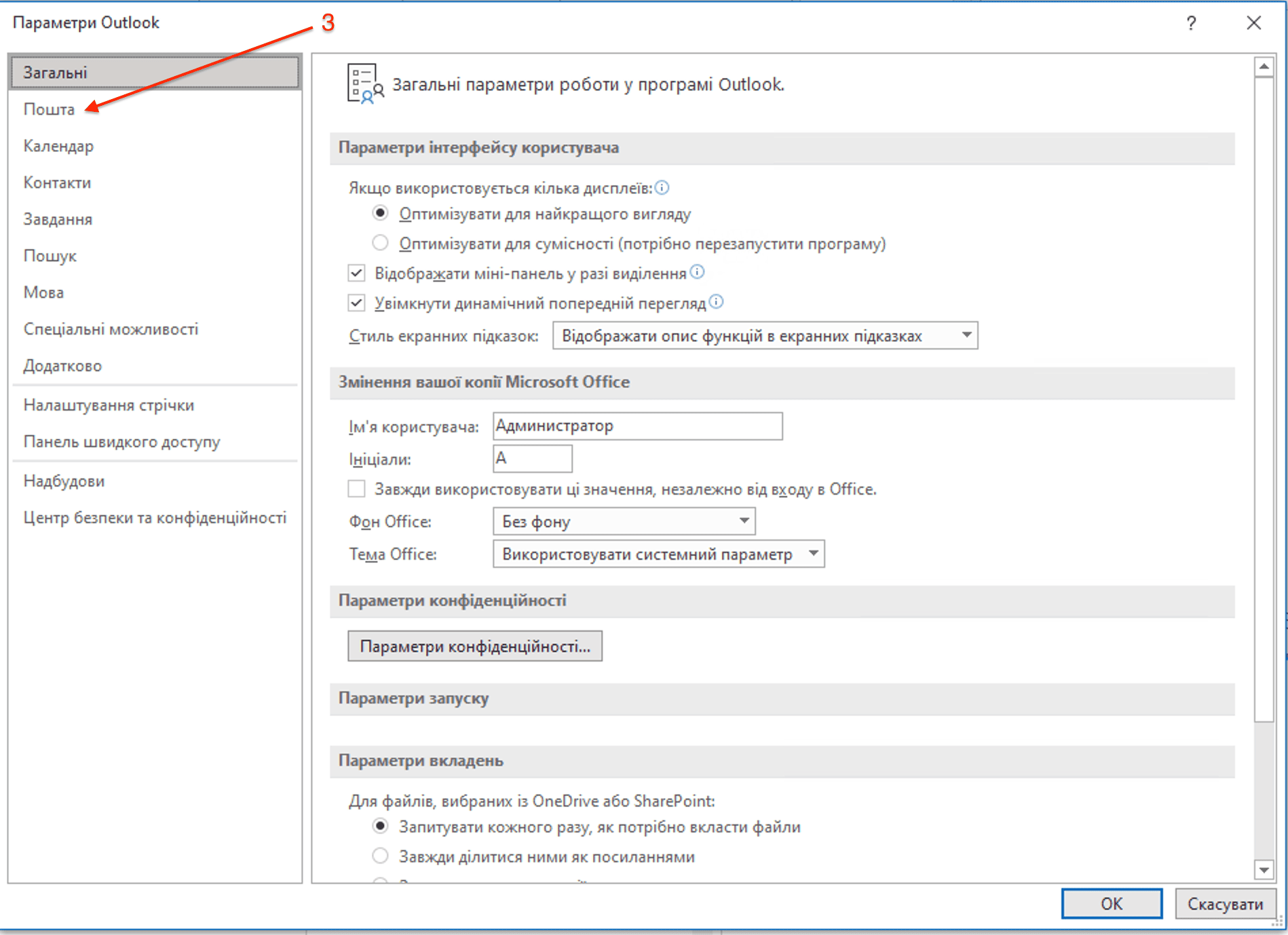
Go to the “Mail” section in the “Outlook Settings” window.
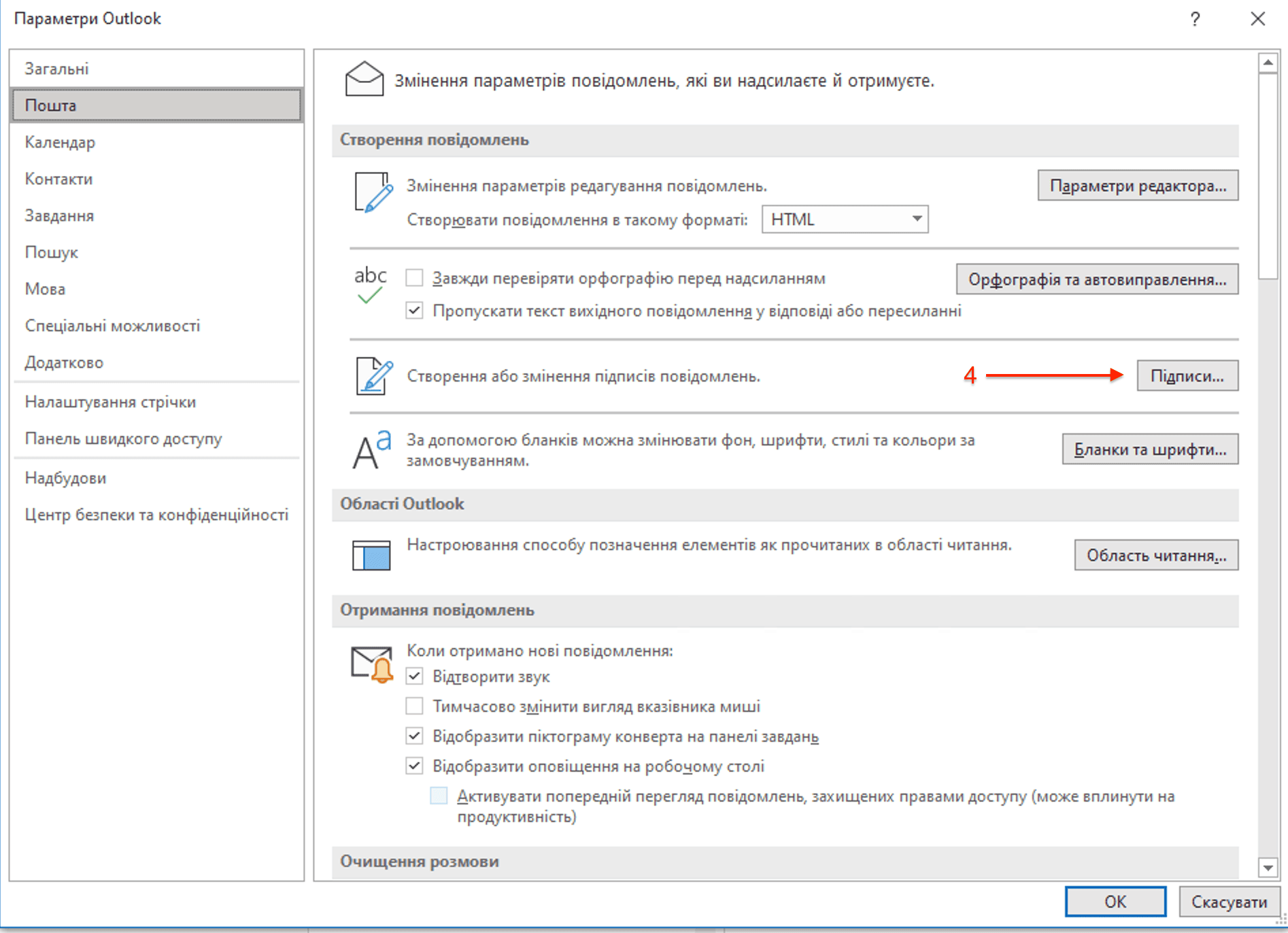
Click the button “Signatures…”.
Create a new signature:
Click “Create” in the “Signatures” window.
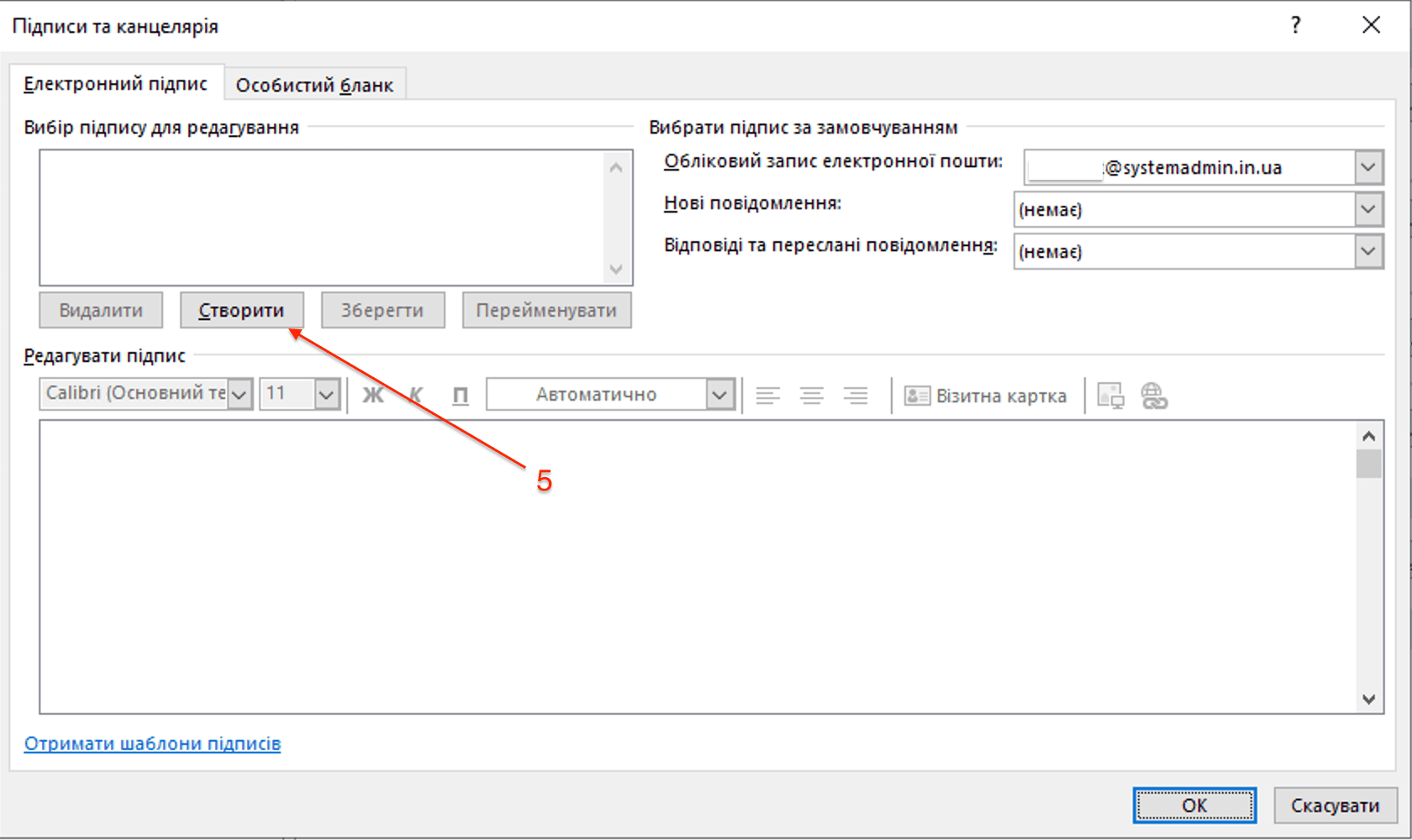
Enter a name for the new signature.
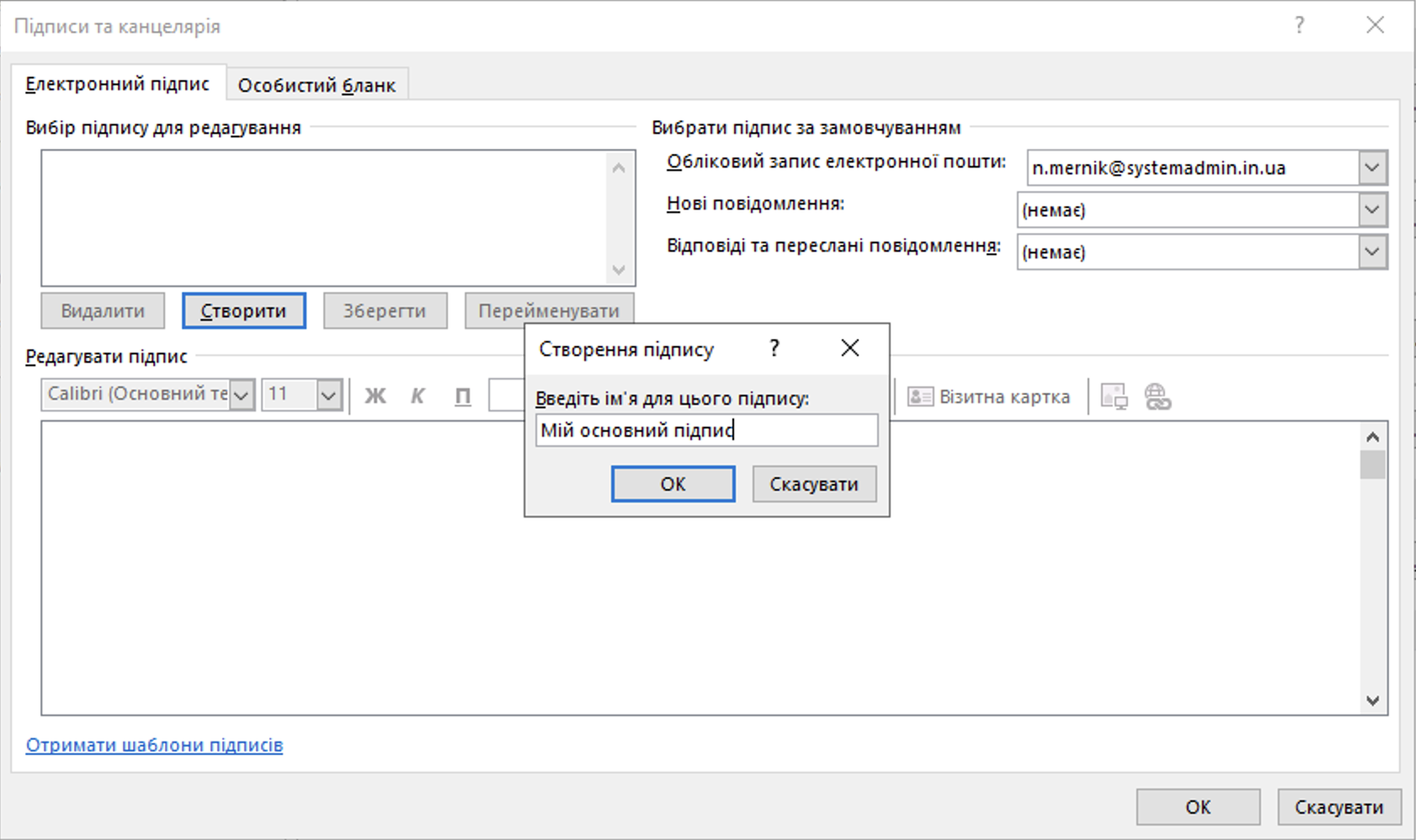
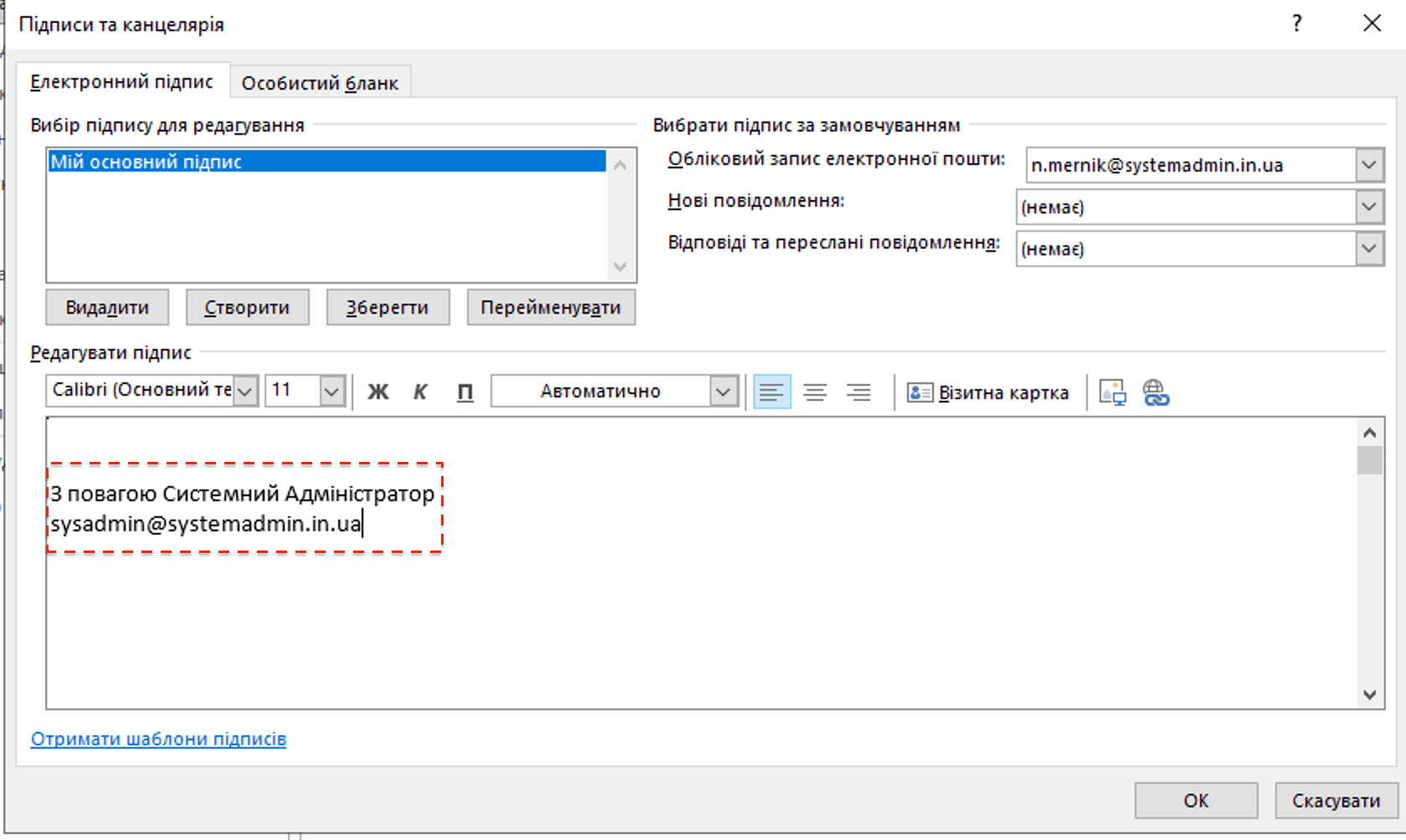
Add text to your signature:
In the “Edit signature” section, enter the text of your signature, such as your name, position, phone number, etc.
Add an image to your signature (if available):
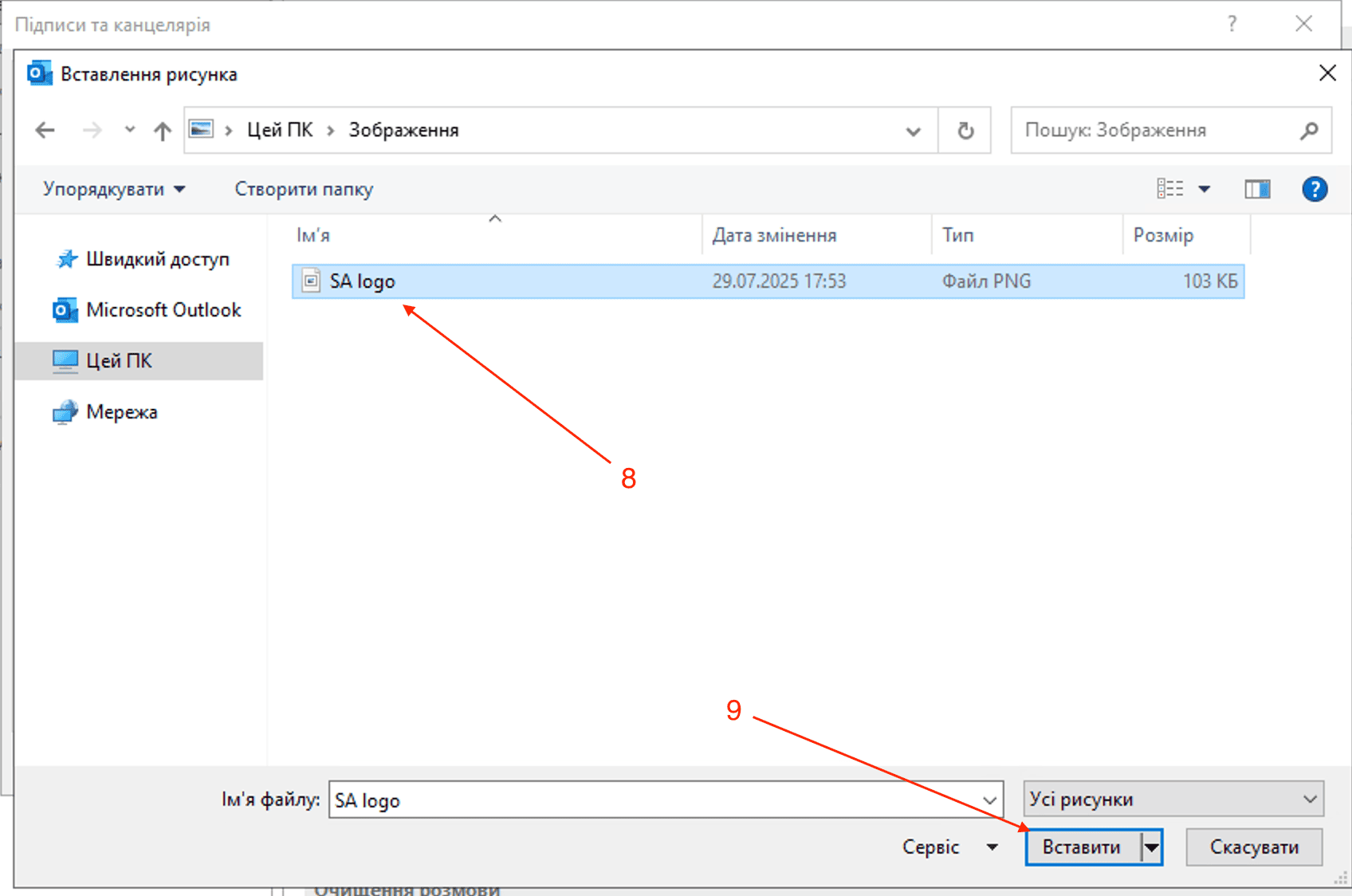
Place the cursor where you want to insert the image.
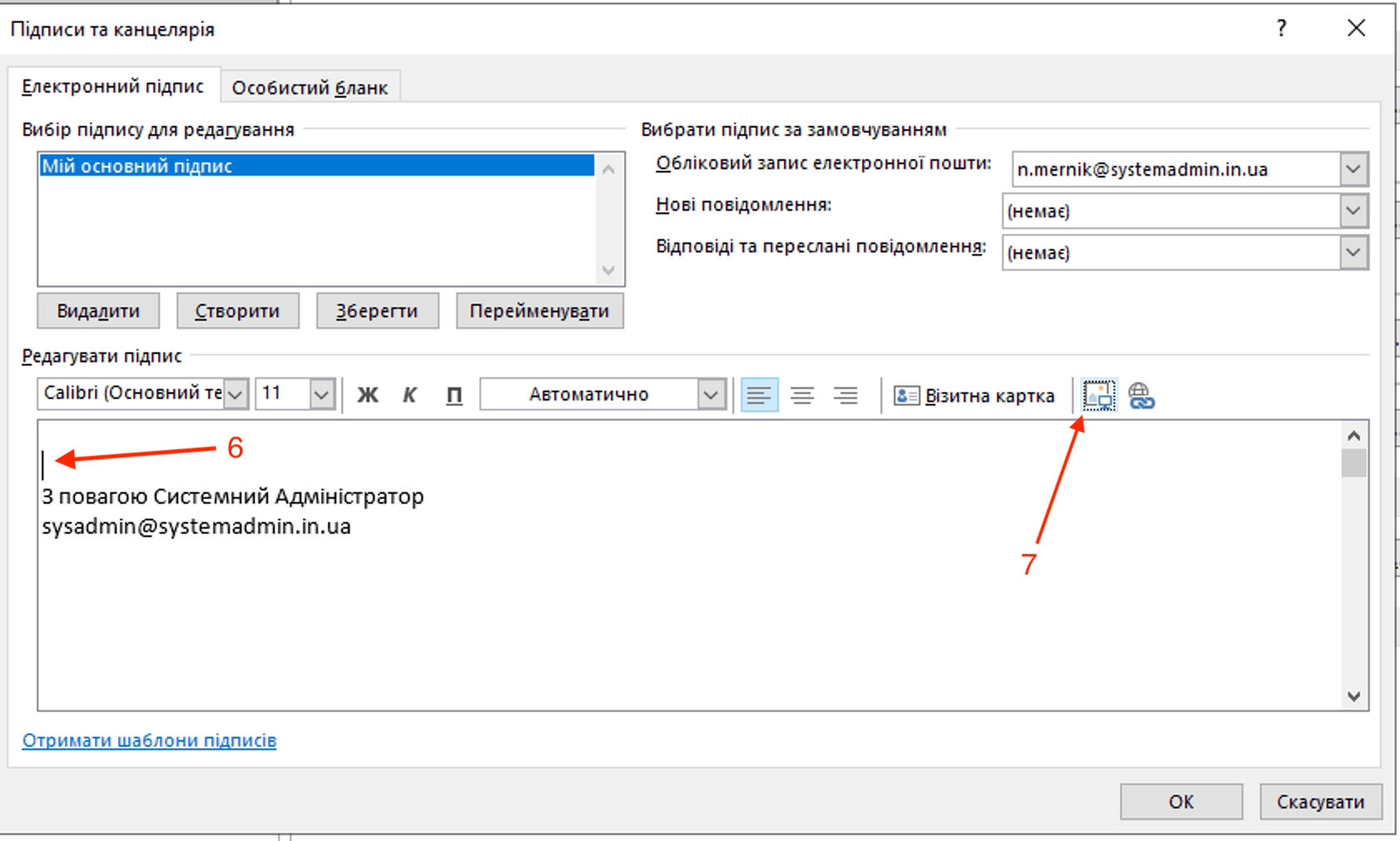
Click on the image icon to insert an image file from your computer.
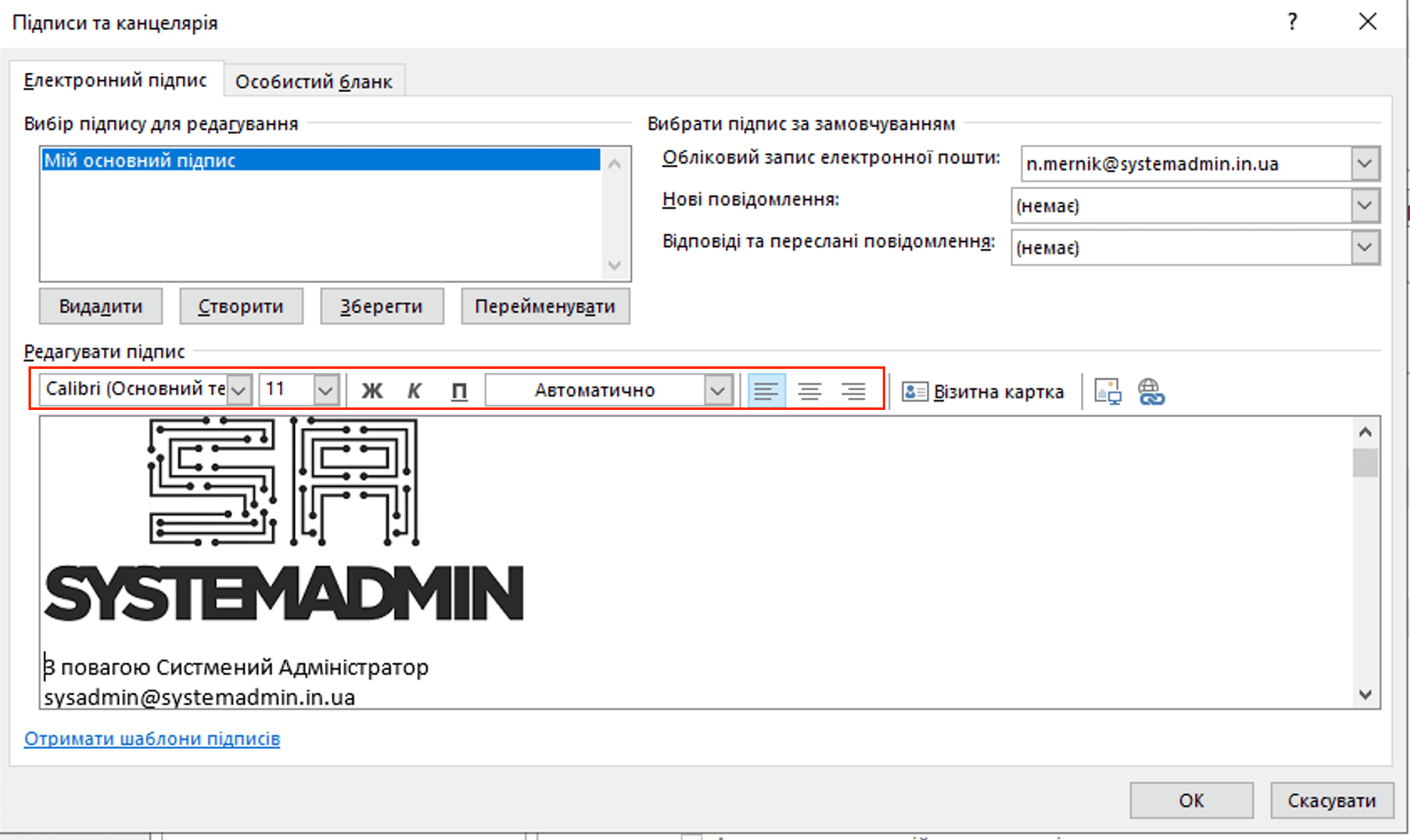
Signature Formatting:
Use the formatting tools to change the font, color, and text size as needed.
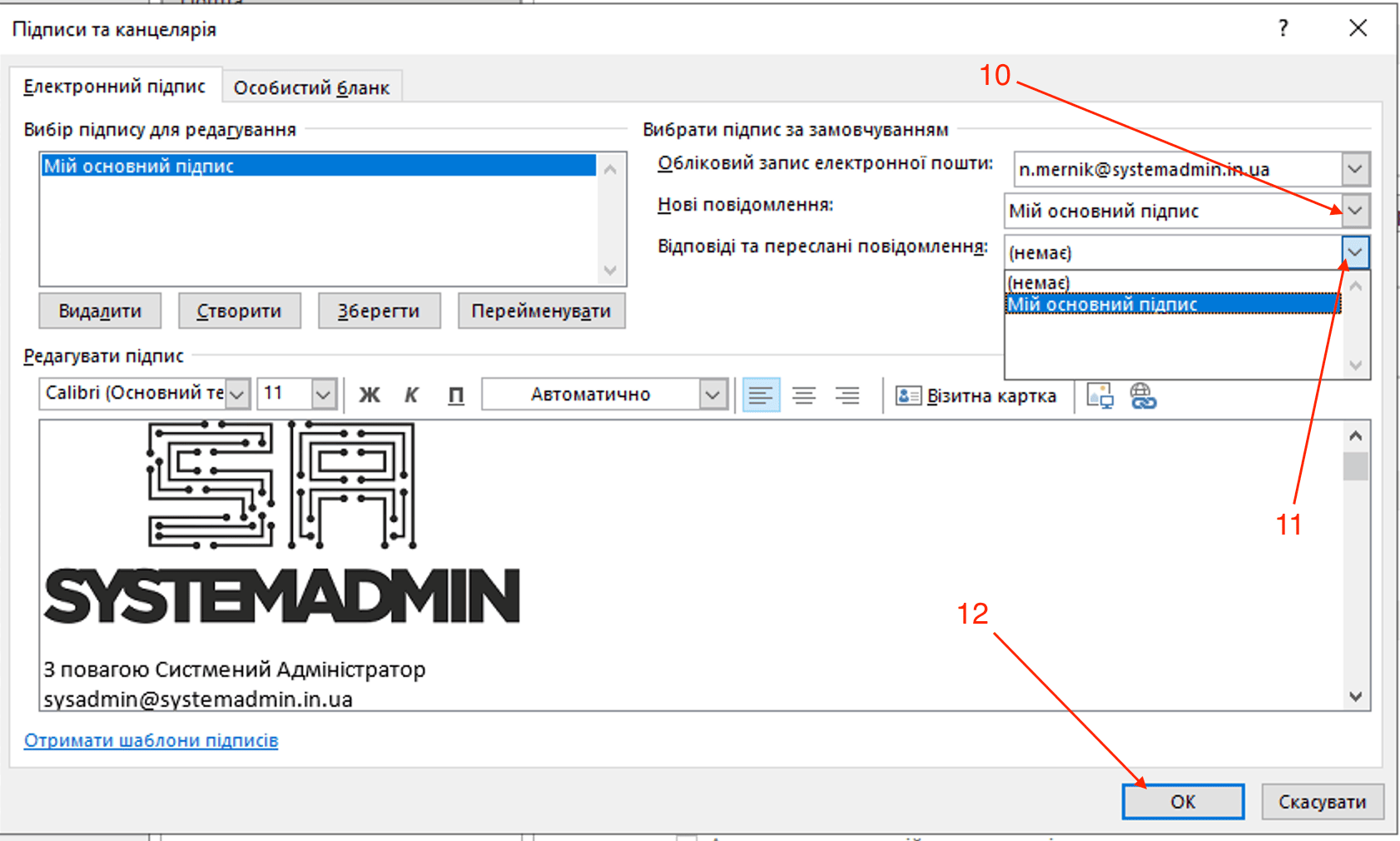
Set the default signature:
Use the drop-down lists to select your new signature for new messages and/or replies and forwards.
Save changes: Click “OK” to save your signature.
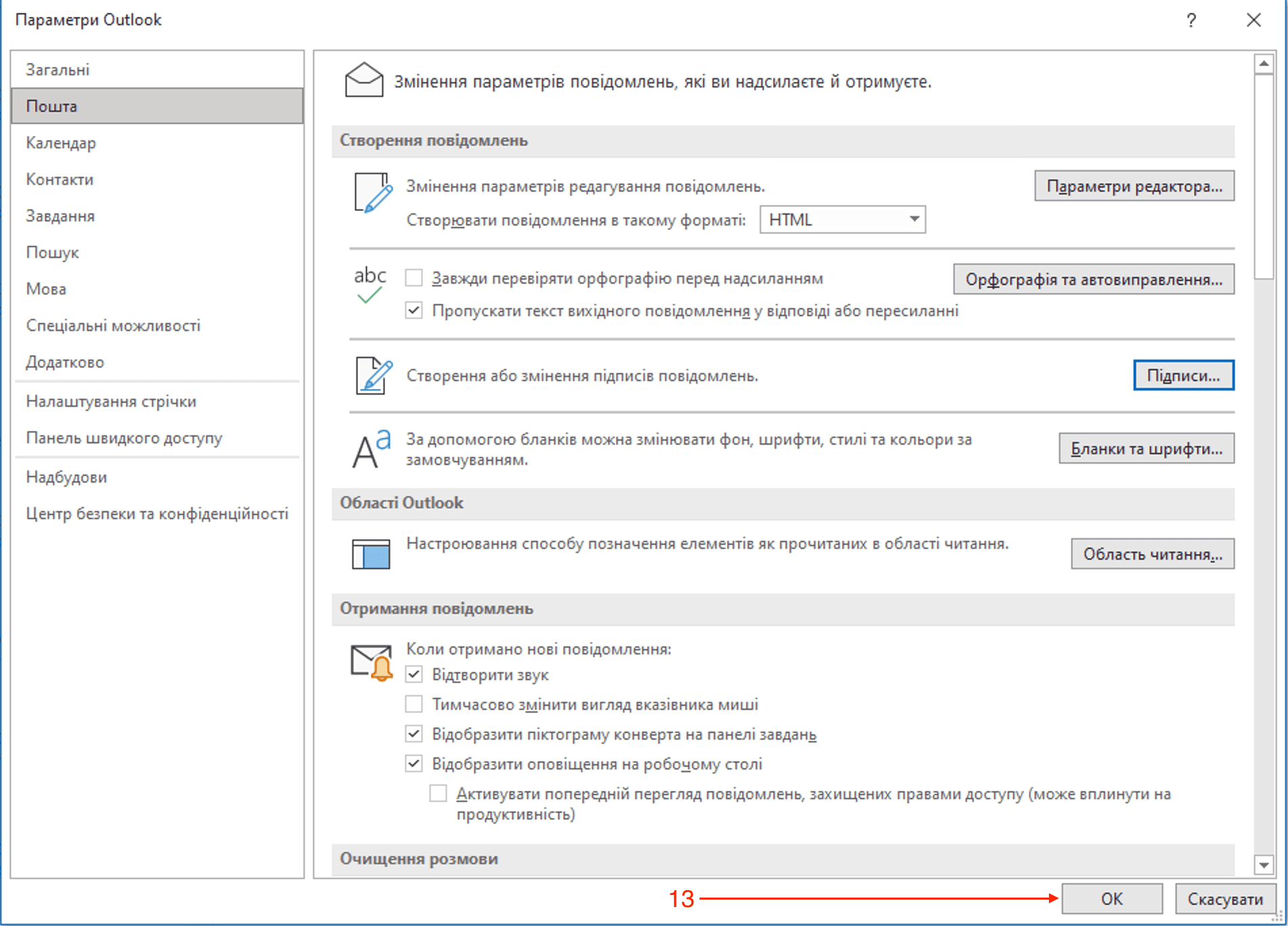
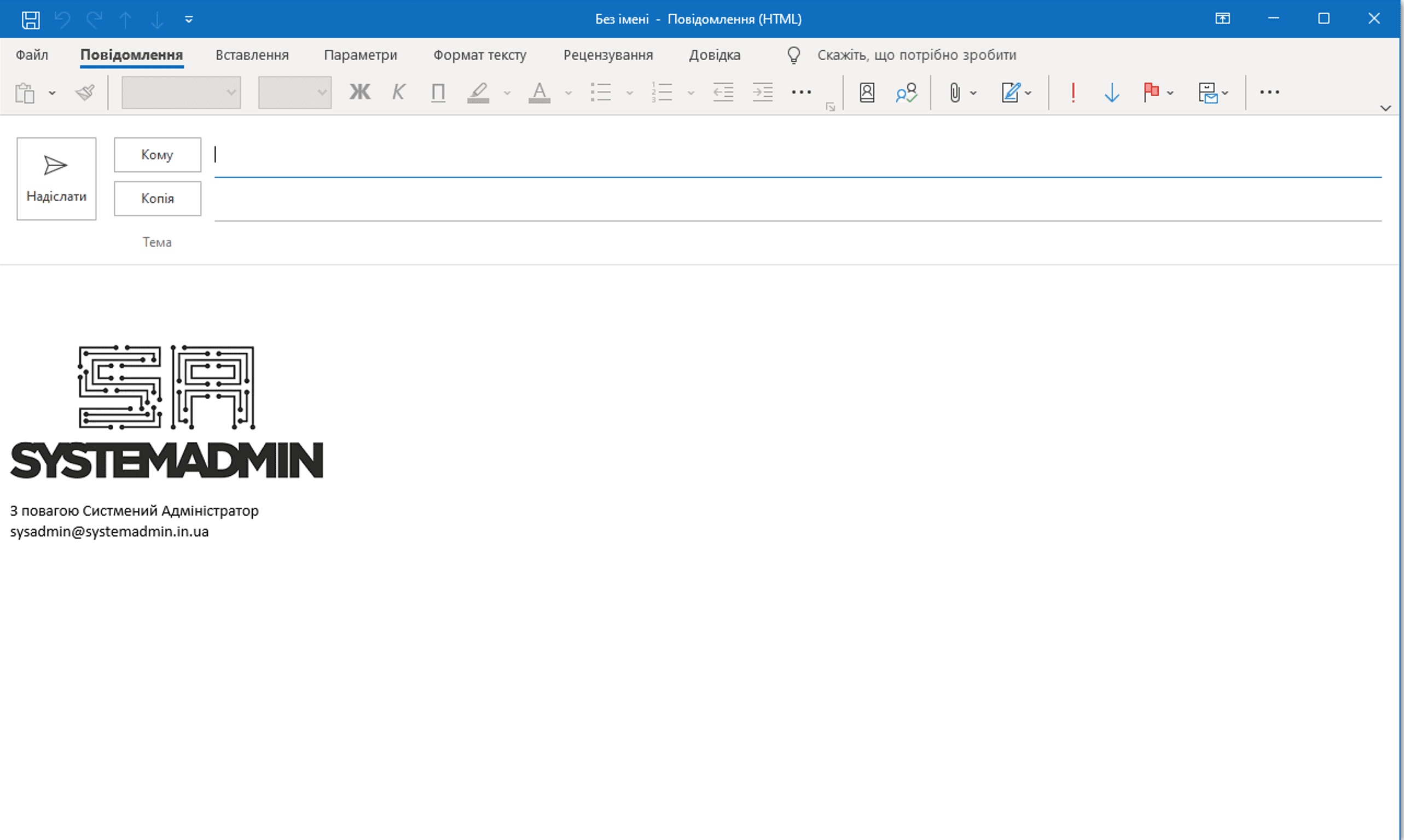
Now when creating a letter and replying to a message, Outlook will add a signature.
 Статті
 Properly ending an RDP session
Configuring time synchronization on a domain controller with an NTP server
Changing the scale for a specific user on RDP Server Windows Server
Properly ending an RDP session
Configuring time synchronization on a domain controller with an NTP server
Changing the scale for a specific user on RDP Server Windows Server