For example, if you’re planning to go on vacation or a business trip and want people who email you to receive an automatic response with certain information, you can set up an Automatic Reply in Outlook.
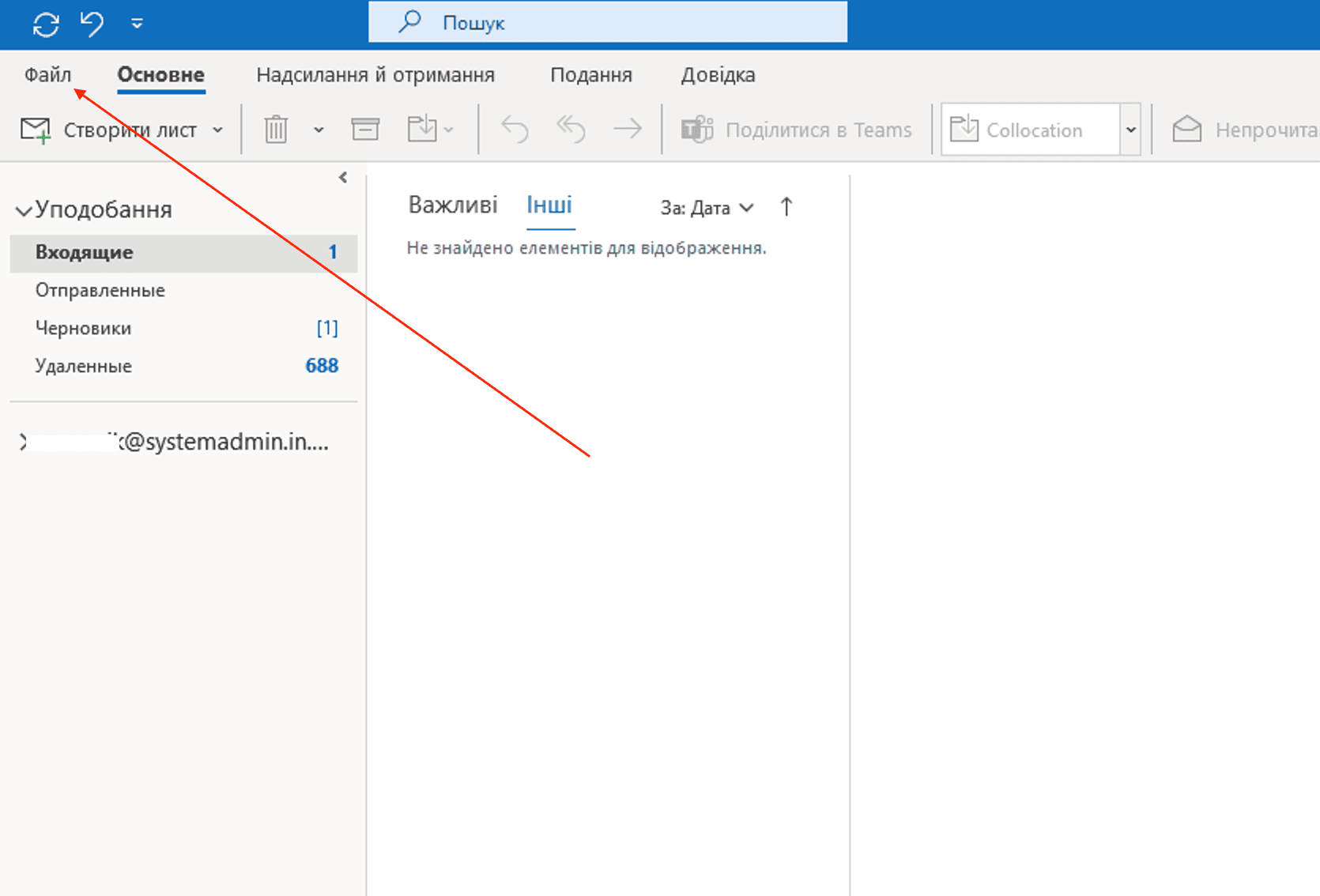
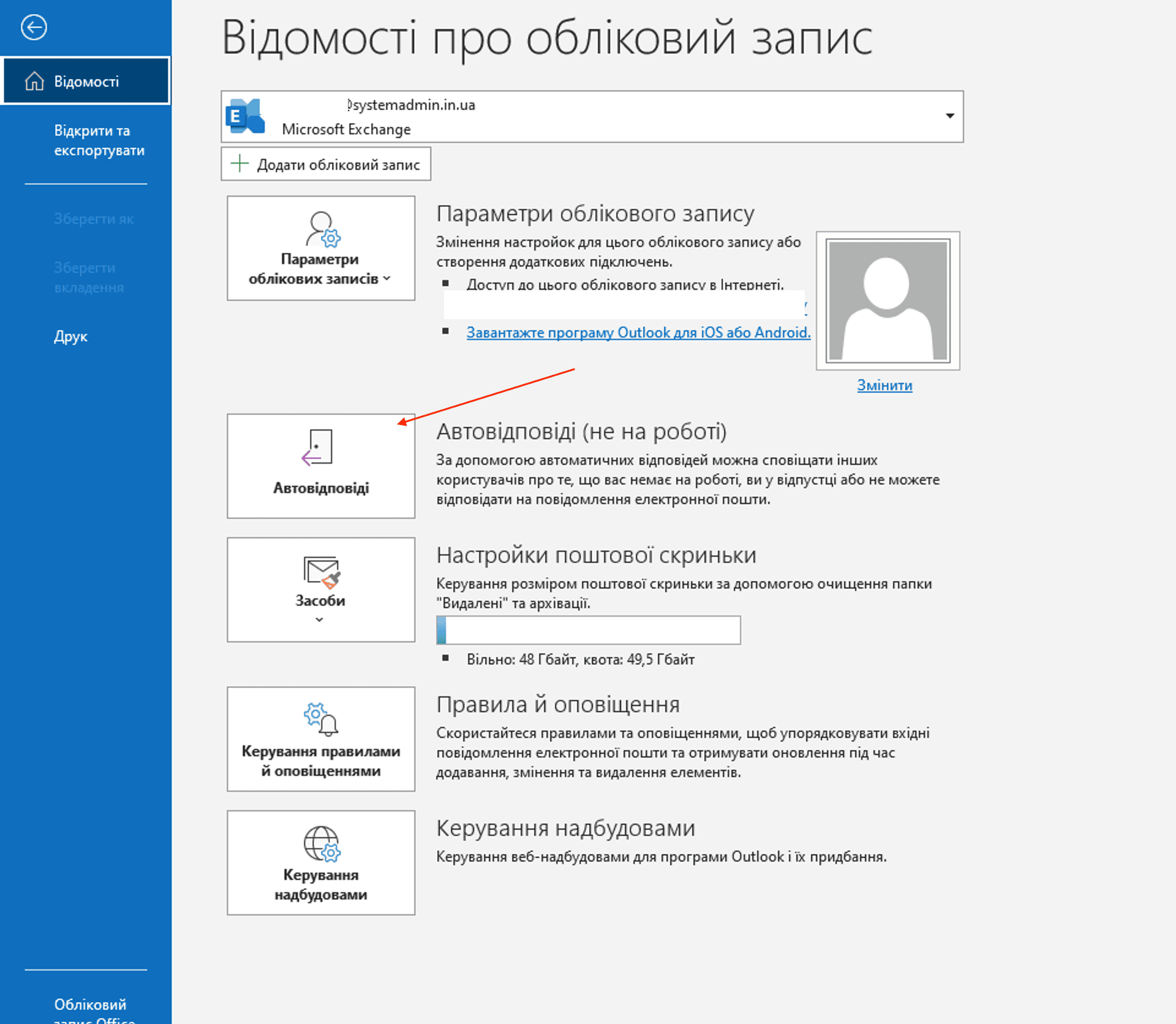
Open Outlook and click File – Automatic Replies.
Next, you need to enable the auto-reply feature and activate the date range during which the auto-reply will be active.
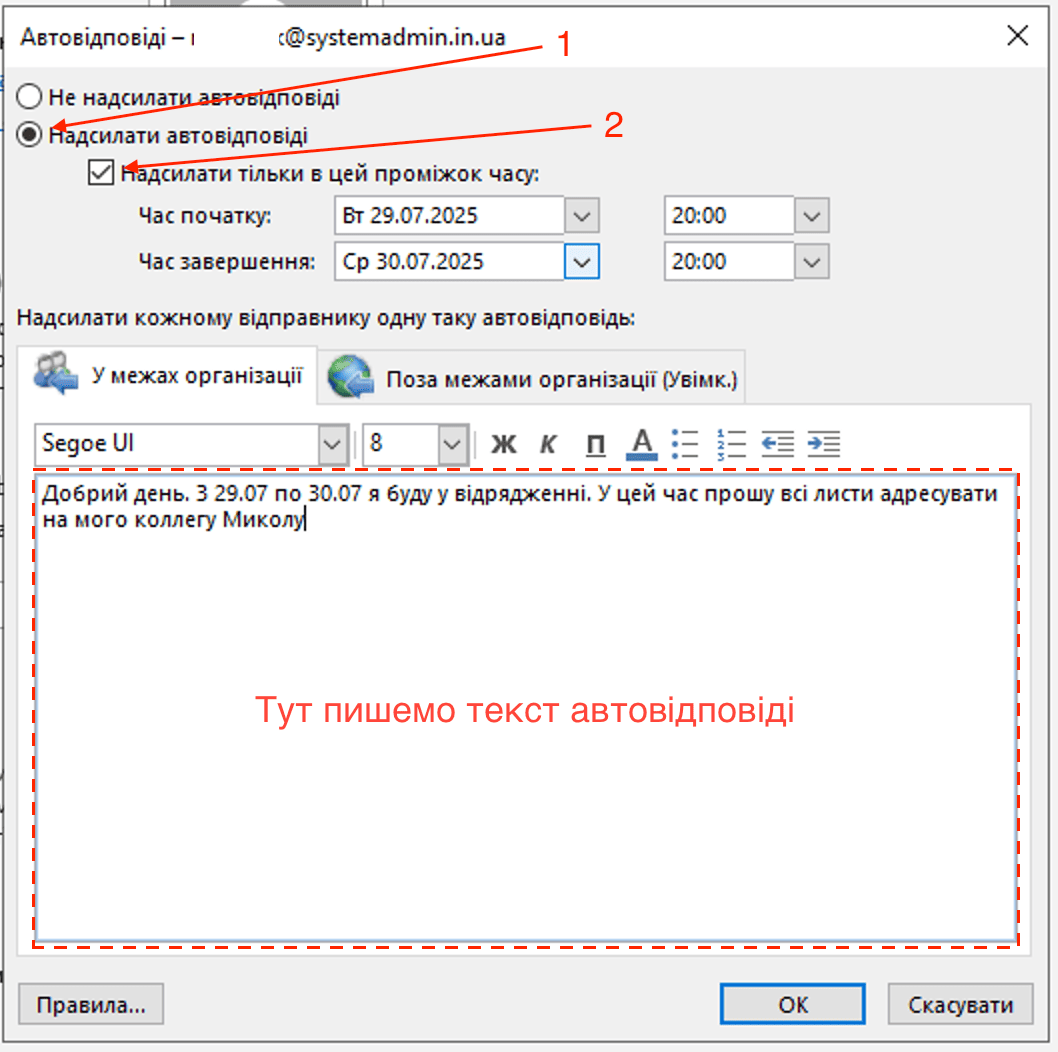
You will see two tabs for entering auto-reply text:
Inside My Organization – this means the auto-reply will be sent to messages received from senders within the same domain as yours. For example, for me, it’s any email sent from the domain systemadmin.in.ua.
Outside My Organization – this is the field for the auto-reply message sent to email addresses from domains different from yours. In other words, all external email addresses.
Usually, both fields (Inside My Organization and Outside My Organization) are filled in.
Once all fields are completed, click OK.
If your mailbox is hosted on Exchange Server or Office 365, the mail server will sync the settings and send automatic replies even if Outlook is closed. However, if your mailbox is connected via the IMAP or POP protocol, Outlook must remain open during the entire period for the auto-replies to work.
 Статті
 Properly ending an RDP session
Configuring time synchronization on a domain controller with an NTP server
Properly ending an RDP session
Configuring time synchronization on a domain controller with an NTP server